Deploy the VCF Operations fleet management Appliance
We need to setup the VCF Operations fleet management appliance before we upgrade VCF to 9.
The fleet management is used with VCF Operations so that we centrally can manage the VCF components for the following use cases.
- License Management
- Lifecycle Management
- Identity and Access Management
- Certificate Management
- Password Management
- Configuration Management
- Tag Management
- Here is a link describing the different sections above in more detail. Link
This post is for showing how the fleet management appliance is deployed and connected with VCF Operations.
- Download the VCF Operations fleet management OVA from the Broadcom Support Portal
- Configure the fleet management appliance
Deploy the OVF template in vCenter and set the required parameters
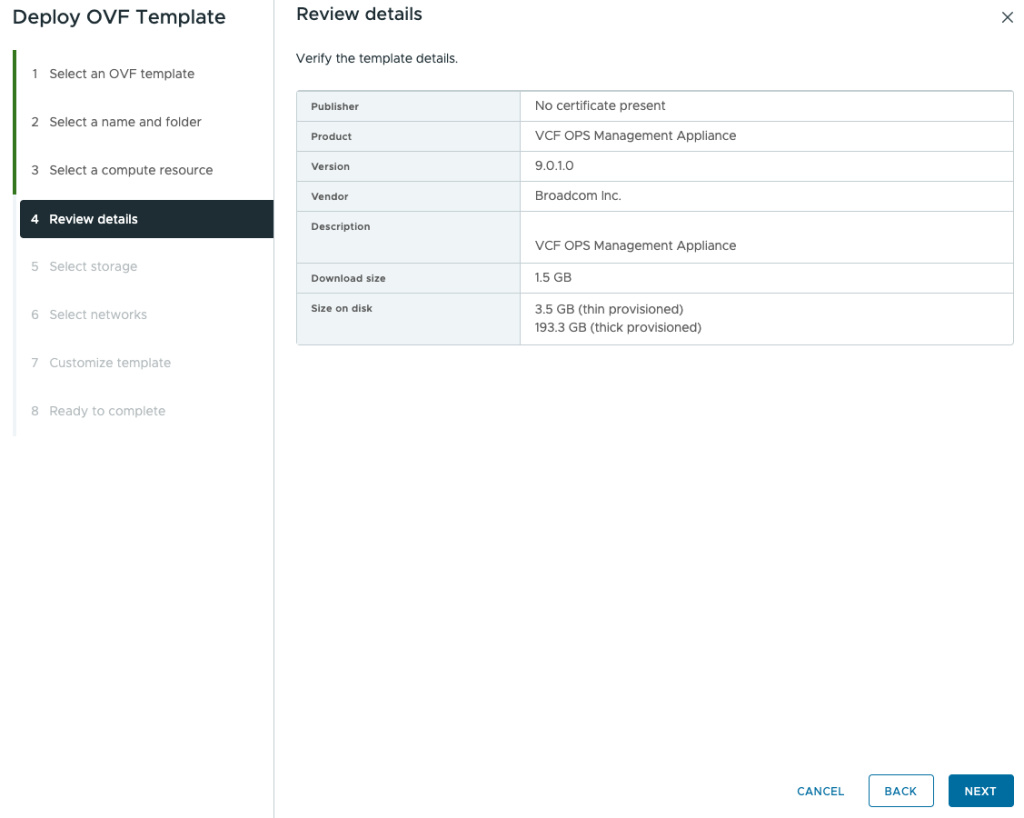
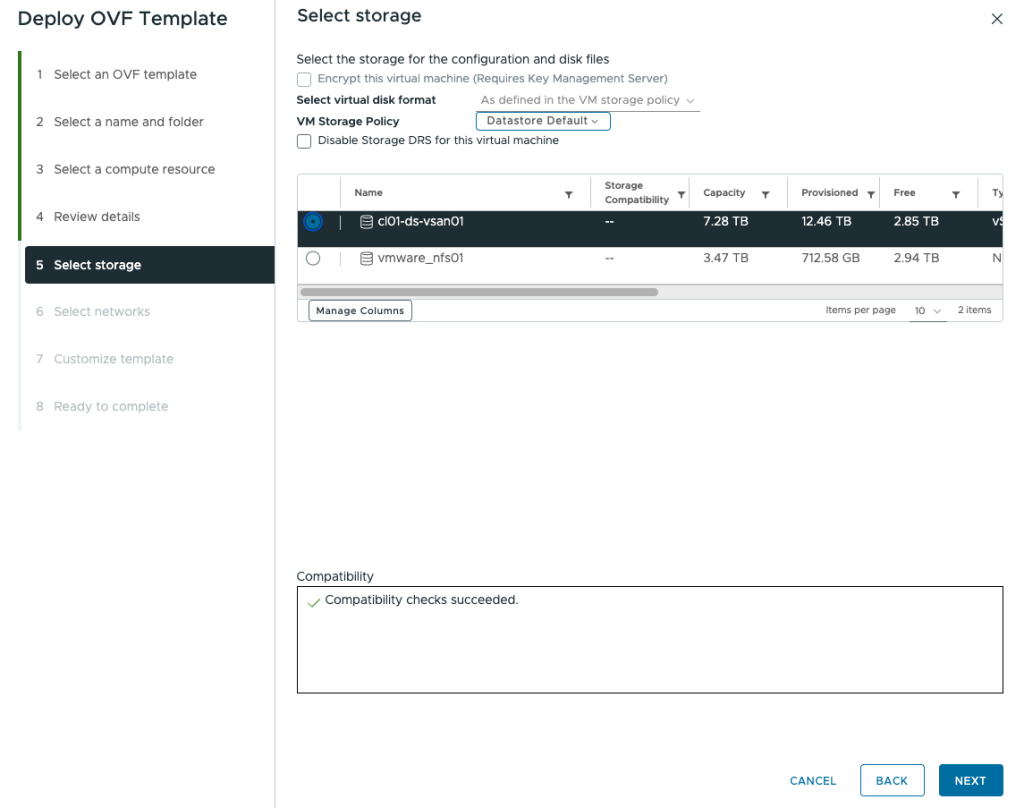
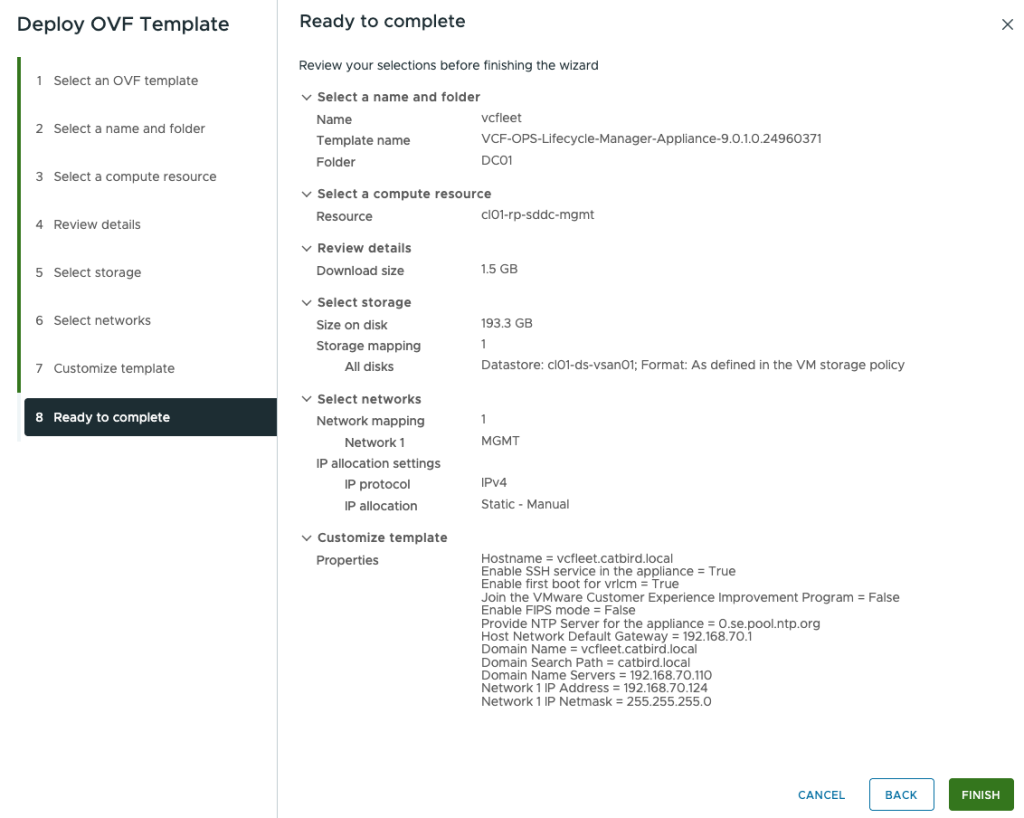
When it is deployed power it on and then wait and head into VCF Operations admin UI.
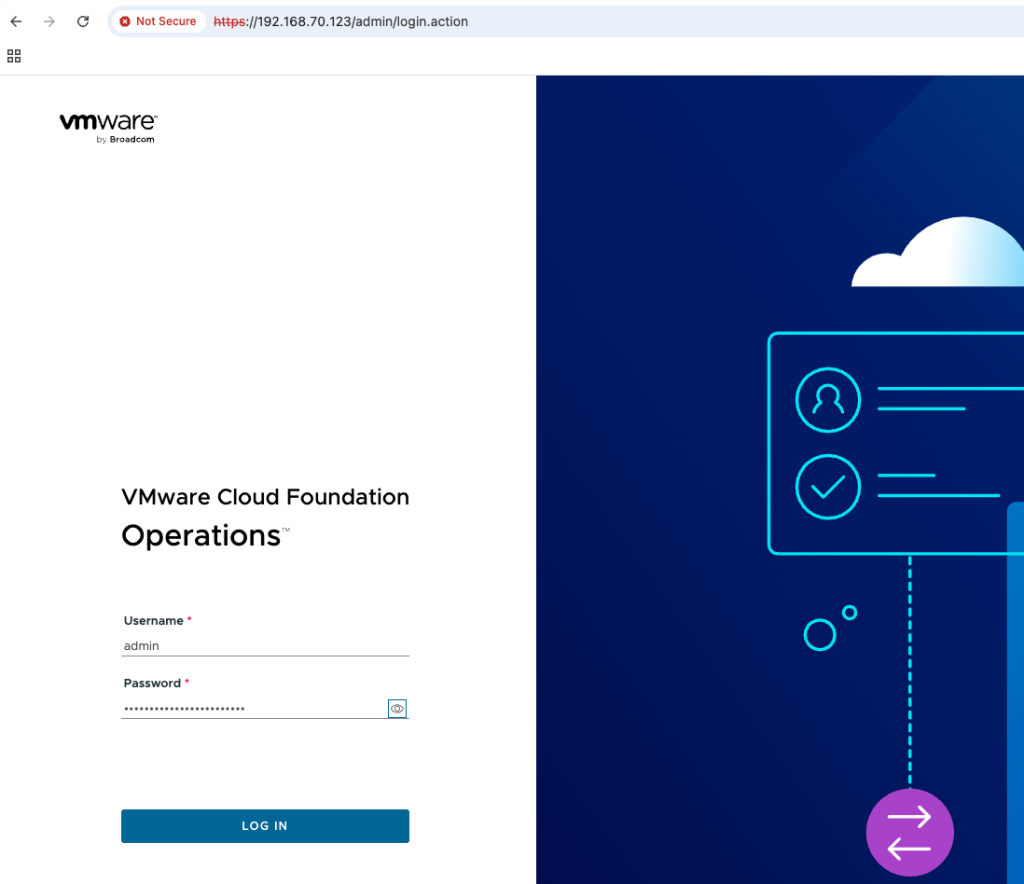
Once logged in click the connect button for fleet management and enter the details provided during OVF configuration.
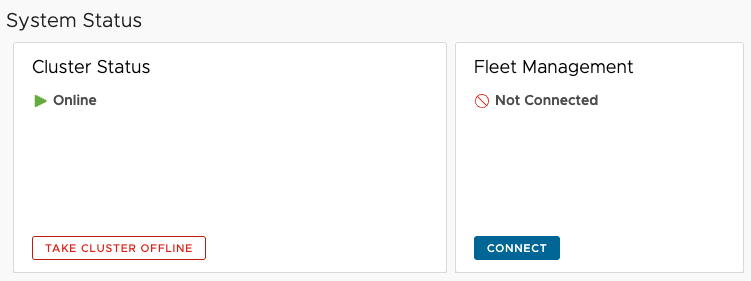
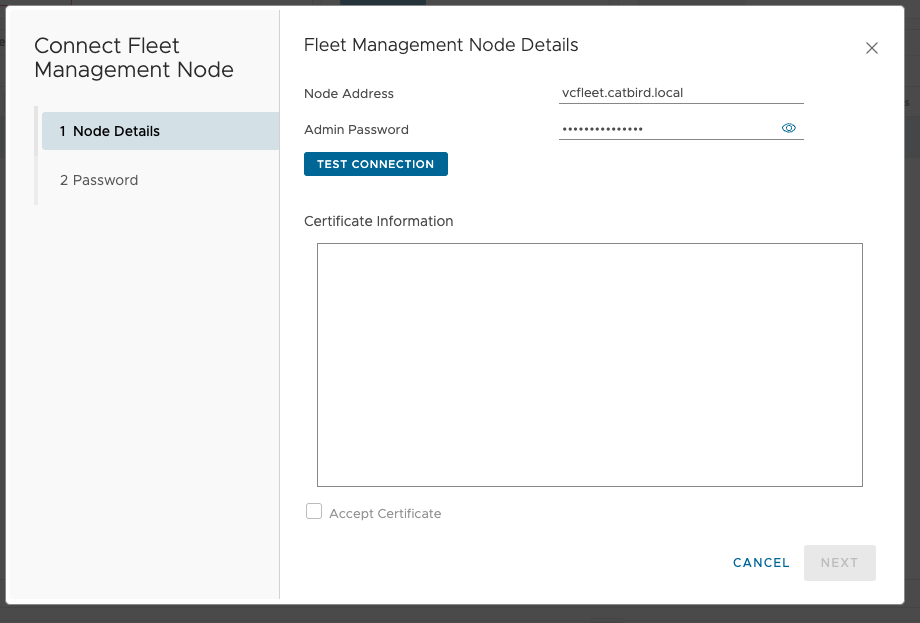
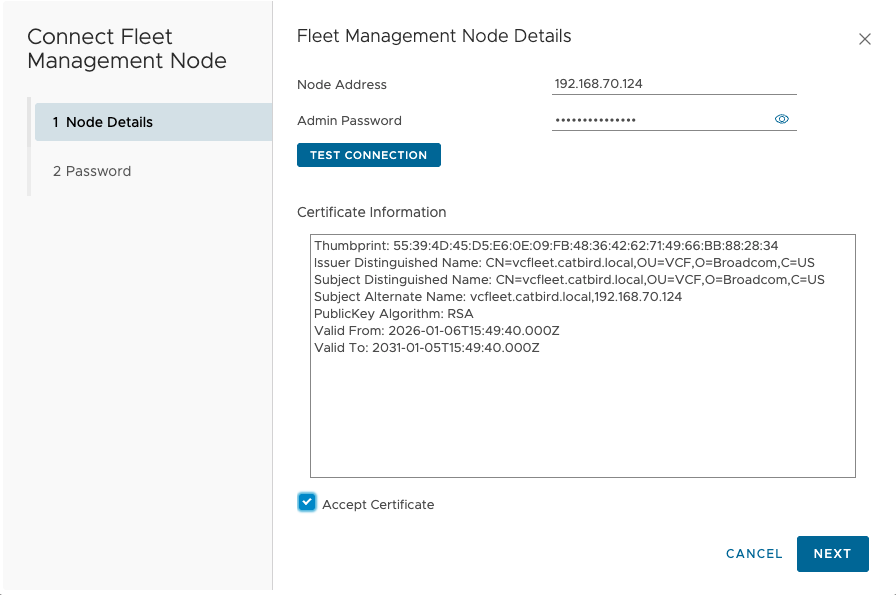
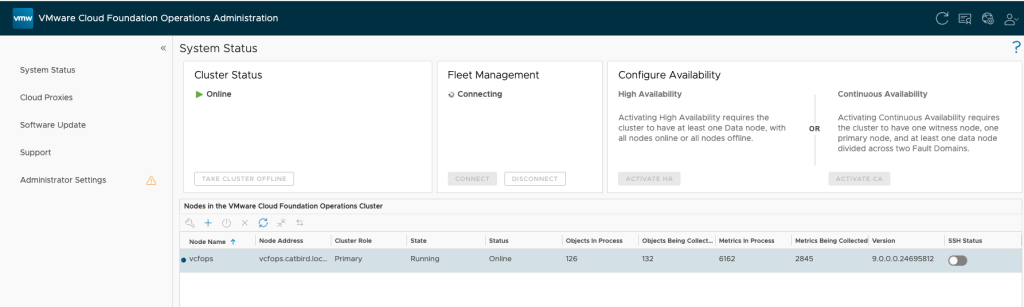
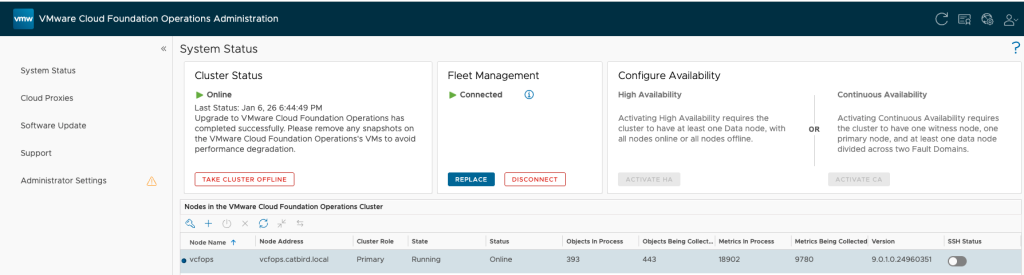
Follow the onscreen and one completed the Fleet Management should say connected.
Now head back into VCF Operations normal UI and add the VCF instance to VCF Ops.
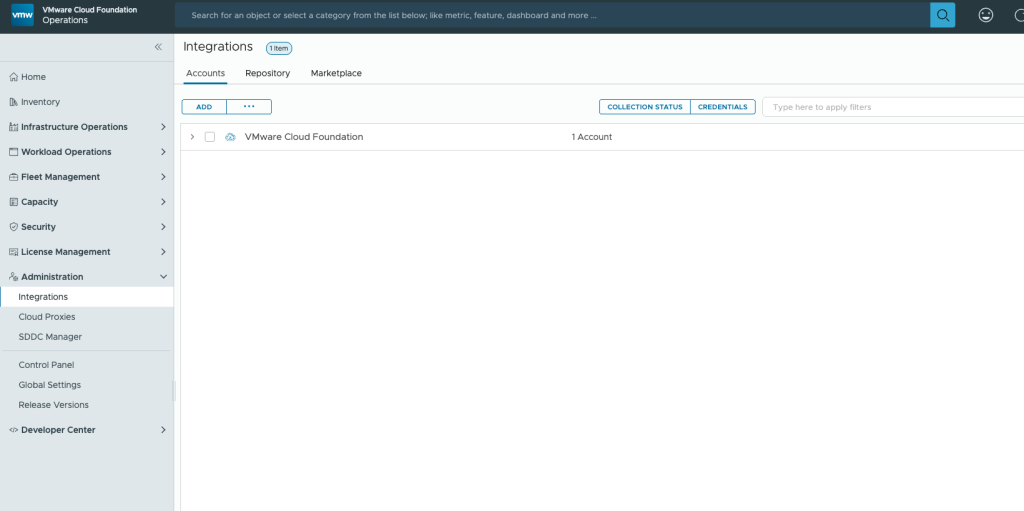
To integrate VMware Cloud Foundation with VCF Operations, add a VCF endpoint into VCF Operations.
Perform the following steps to add a VCF endpoint and enable collection for that endpoint.
- Log in to VCF Operations.
- On AdministrationIntegrations, click Add.
- Under Account Types, select VMware Cloud Foundation and enter the following information:
- Cloud Account Information
- Name: Alias of SDDC-Manager
- Description
- Physical Datacenter (Optional)
- VCF Credentials
- SDDC Manager: FQDN of the SDDC Manager
- Credential: If not present, click to add one.
- Collector/Group: Use the Default Collector Group, or select a cloud proxy.
- Cloud Account Information
- On AdministrationIntegrations, click to open the VMware Cloud Foundation account. The newly added endpoint appears. Click the ellipses for the endpoint and select Enable Collection.

0 Comments